Versioning Builds During a 14-Day Google Play Closed Test: versionCode, Release Notes and What Testers Actually Get
How versionCode decides which build reaches your closed testers, how to number builds from CI, and what release notes are for.
From the TestMyApps team.
You will ship more than one build during a 14-day Google Play closed test. Testers find bugs, you fix them, and the fix has to reach the same people who reported it.
That part sounds simple until a tester says "I still have the old version," or Play Console refuses an upload because the version code is already used. This post covers the mechanics: how versionCode decides what a tester's phone gets, how to number builds so you never collide, what release notes are for, and the one track setting that quietly keeps testers off your closed builds.
The short answer: the highest versionCode wins
Google's Play Console Help puts it in two conditions. A device receives the app version that has the highest version code compatible with that device, and that is published to a track the user is eligible for. To be eligible for a test track, a user must be on that track's tester list and must have opted in to that test.
So for your closed test:
- A new build reaches testers only if it has a higher versionCode than what they already have access to.
- It only reaches people who are both on the closed track's list and opted in.
- Google's help says that once testers install, their app updates to the test version within a few minutes. In practice, if a tester has Play Store auto-updates turned off, they'll see your build as an available update instead.
If you're still finding people to opt in, TestMyApps can get you 12 testers for 14 days: 14 Android app testers on real phones for 16 days, from $15. You still own the builds, and the rest of this post still applies.
Numbering builds so uploads never collide
The Android developer docs set the rules. versionCode is a positive integer, each release should use a greater value than the last, and the highest value Google Play accepts is 2100000000. And you can't upload a build with a versionCode you've already used, even if that build only ever went to internal testing.
That second rule is the one that bites mid-test. You upload 1.0.2 to internal testing, find a typo, rebuild, and the upload fails because versionCode 5 is taken. The fix is to stop typing version codes by hand.
Here's a small Gradle (Kotlin DSL) setup that takes the number from your CI build counter:
// app/build.gradle.kts
val ciBuildNumber = System.getenv("CI_BUILD_NUMBER")?.toIntOrNull() ?: 1

android {
    defaultConfig {
        applicationId = "com.example.reminders"
        // Always increases, never reused, far below 2100000000
        versionCode = 1000 + ciBuildNumber
        versionName = "1.0.$ciBuildNumber"
    }
}
CI_BUILD_NUMBER is a placeholder; use whatever counter your CI exposes. A date-based scheme such as yyMMddNN (26111001 for the first build on 10 Nov 2026) also works and stays well under the limit. Pick one and keep it for the life of the app, because you can't go back down.
Two names are easy to mix up:
- versionName is the version users see on the app's details. Testers will quote this one.
- Release name in Play Console is only for you. Google's help says it isn't visible to users and is auto-filled from the version name of the first bundle you add. Leave it as the version name, or add a suffix like "1.0.7-closed".
The internal-track trap
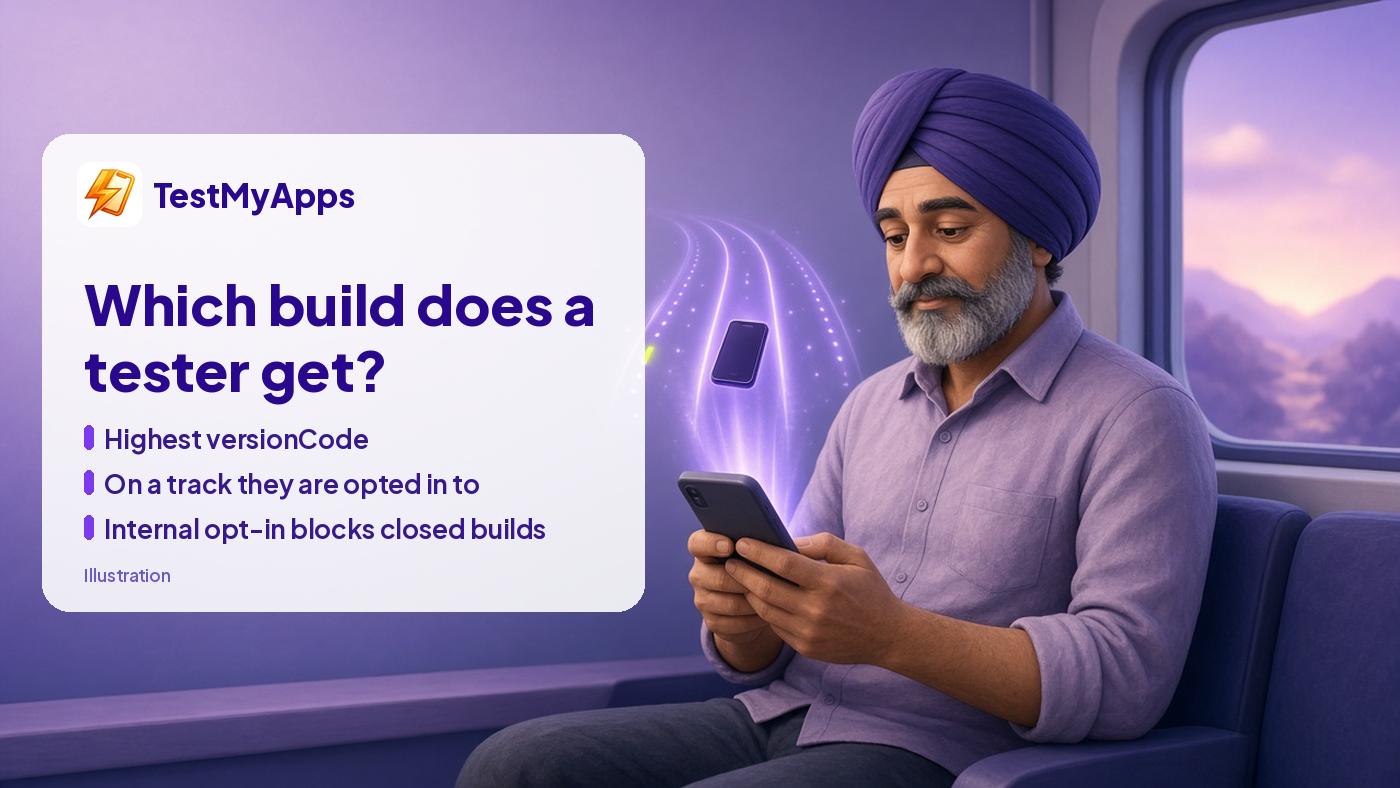
A tester gets the highest versionCode from the tracks they're eligible for. Being on the internal list changes which tracks those are.
It's tempting to add your whole tester group to internal testing for quick checks, then to the closed track for the real test. Google's help is explicit about this: a user who opts in to your app's internal test is no longer eligible to receive an open or closed test. To get the closed test, they have to opt out of internal testing first and then opt in to the closed test.
So keep your closed testers off the internal list. Use internal testing for yourself and maybe one teammate, to sanity-check each build before promoting it. Google also notes internal tests might not get the standard policy and security reviews, so don't be surprised if an internal build shows up sooner than the same build on the closed track.
Release notes: what they're for
Each release has a "What's new in this release?" box. A few details from Google's help:
- Notes go between language tags, one block per language:
<en-US>
Fixed: reminder time picker ignored the 24-hour setting.
Fixed: sign-in screen froze after rotating the phone.
</en-US>
- Up to 500 Unicode characters per language.
- Google asks that release notes not be used for promotion or to ask users to take actions.
That last point matters during a closed test. "Please retest the sign-in flow" is a request for action, so put it in your tester channel (email, chat group, whatever you set up), not in the release notes. Keep notes factual: what changed in this build.
Does a new build restart the 14 days?
Google describes the requirement entirely in terms of opt-in: at least 12 testers opted in when you apply, who have been opted in continuously for the preceding 14 days. Testers who opt out before 14 days don't count, and if someone opts out and back in, their 14 days have to be consecutive.
Nothing in that help page says publishing an update to the closed track restarts anything. The same page actually recommends continuing to update your app in closed testing while you fix reported issues. What can break the count is a tester opting out, including opting out to join some other track. So the thing to protect during an update is the opt-in, not the build number.
Plan for review time
When you prepare a release, Play Console shows Publish or Save, depending on whether your changes need review. Saved changes wait in "Changes ready to send for review" on the Publishing overview page until you send them. For a closed test, that means a hotfix isn't instant, so don't leave your last fix for the last day.
Keep a release record per build
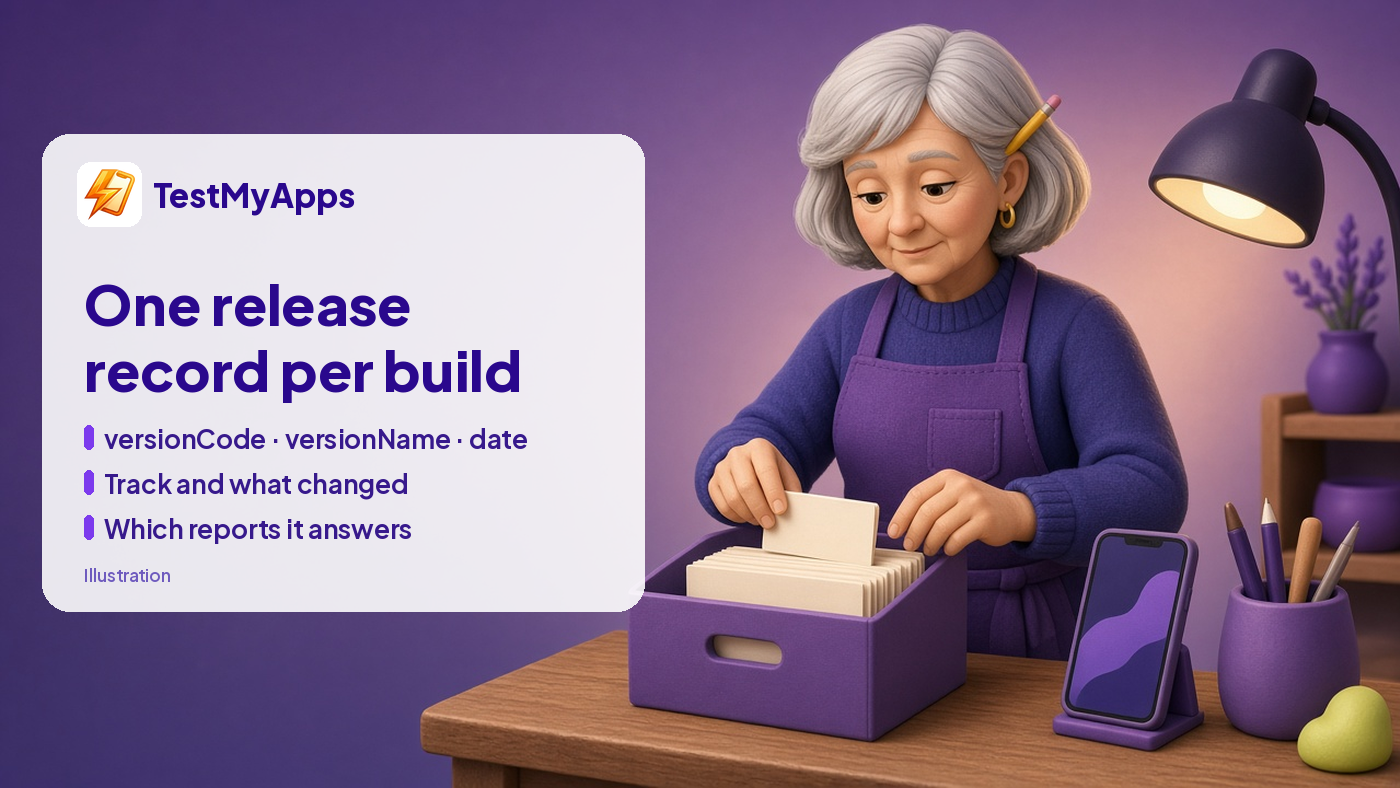
One line per build makes "what did you change" a copy-and-edit job.
For each build, write one line: versionCode, versionName, date, track, what changed, and which tester reports it answers. Play Console's Latest releases and bundles page shows releases and tracks, but not why you shipped them. When the production-access application asks what you changed based on the closed test, this record is the answer.
A quick checklist for every mid-test build:
- versionCode comes from CI, never by hand.
- Build checked on internal first, by someone who isn't a closed tester.
- Release notes say what changed, no requests.
- Retest request sent through your tester channel.
- Release record updated.
If you'd rather spend the 14 days on builds than on counting opt-ins, here's how a 14-tester, 16-day run works. Google decides production access either way; good version hygiene just makes the evidence easier to show.
Sources: Play Console Help, Set up an open, closed, or internal test, Prepare and roll out a release, App testing requirements for new personal developer accounts; Android Developers, Version your app.
Comments
Join the discussionNo comments yet. Be the first to comment.